

The WordPress core security team issues patches for two dozen old release lines, not just the current one. Nothing in wp-admin tells you whether yours is among them, whether a patch exists for your version, or what is quietly stopping it from arriving.
Here’s how to find out and get control over your core auto-updates.
The Problem: Silent Drift
Two WordPress sites, both on 6.8.7 — a release WordPress.org classifies as insecure. No one has ever touched an update setting on either site.
Overnight, one site updates to 6.8.8, which is secure. The other leaps forward to 7.1, which is also secure. Why the difference? How did this happen?
One site took a same-branch security patch delivered as a small delta package. The other went straight from the 6.8 branch to the latest release on the 7.1 branch. Nobody chose either outcome. It was decided by a value during the original install process years ago, based on nothing but the date when each site was created.
A third site, configured almost identically, stays on 6.8.7 and remains vulnerable. Why?
This post explains how a security fix actually reaches a WordPress site and the handful of settings — including the install date nobody sets on purpose — that stop security updates from arriving at all. Read this as a companion to my post on core update defaults, which explains where that install-date value comes from and many other technical details about WordPress core’s auto-update logic.
The tl;dr version
If you’re not sure about the security of an older WordPress site that’s behind one or more major releases, look up your exact version in stable-check today. If it says insecure, update it to the nearest outdated version, if not the latest. When the stable-check API says a release is outdated, that means WordPress.org is not currently flagging that version as insecure — it’s just older than latest. Only the latest release is actively supported; backports to older lines are a courtesy. Your site’s Dashboard will tell you when the latest update is available, and Tools › Site Health flags out-of-date core versions. What neither exposes is stable-check’s classification of the exact version you are running and the next nearest secure version. As a workaround, you can use the Core Rollback plugin to roll forward. You can also use my plugin, Keel Defaults, which tells you what your core update policy is, lets you set it, and offers you all the updates you’re eligible for.
Key Facts
- Old versions still get security fixes. WordPress patches two dozen old release lines, not just the current one. Your fix is a third-number bump on your own version line.
- Security fixes ride the ordinary minor-update channel. There is no separate security track, so anything that switches off minor updates switches off your access to security patches too.
- If WordPress’s own updater is responsible for your patches, set it to
'minor'rather thanfalse.define( 'WP_AUTO_UPDATE_CORE', 'minor' );allows minor releases, including backported security patches, and it blocks major releases.falseblocks both major and minor auto-updates. - A site that can’t reach the WordPress.org API over HTTPS stops updating altogether, with no update-failure state recorded — even with correct settings and a writable filesystem. There’s no warning or error message for this.
- Check for accidents, not just settings. A stray
.gitdirectory blocks every automatic update because it’s assumed to indicate the site is under version control, which makes it ineligible for automatic updates. Core walks upward from the site toward the filesystem root, so a repository in a parent deployment directory counts too. It is not entirely silent, though: the Updates screen and Site Health both report it, and blocked core updates can result in an email to admins. - Below 4.7, there is nothing to receive. No configuration helps; no security patch exists. It’s well past time to upgrade sites this ancient.
Security backports are maintenance releases that increment the third number in a WordPress version — 6.8.7 to 6.8.8. (WordPress doesn’t use semantic versioning; core calls a move from 6.8 to 6.9 a major release, which semver would count as a minor bump.) Just like maintenance releases on the current version line, backports for older lines arrive on the same channel as ordinary updates.
Take care — anything that switches that channel off silently switches off your access to backported security patches too. Several of the things that kill that channel are the exact steps people take when they think they’re dialing down their core update settings. Avoid these footguns!
WordPress patches old branches, not just the current one
WordPress doesn’t only fix the latest release and version line when there’s a security update. Your 6.4 site’s path to a secure version of core wasn’t just 7.1, which was released on August 19, 2026. As of August 12, you also had 6.4.10 as an option, and you still do.
When a vulnerability is found, the security team may backport applicable fixes to eligible older branches, shipping them as they become ready. That may be ahead of the latest release carrying the same security fixes, or the backports may come later.
You can see the whole set of backports currently available through the stable-check endpoint in the WordPress.org API. WordPress.org publishes a status for every release it lists, going back to 1.0.2: https://api.wordpress.org/core/stable-check/1.0/
As I write this, there are 884 versions, each tagged with one of three status labels:
- latest — the current release. Exactly one version has this.
- outdated — not the current release, and not presently classified as
insecure. That is the most this status asserts. It does not mean the line is supported: WordPress quietly backports to older branches where necessary and feasible, as a courtesy, and those fixes ship as they are ready, separately from the current release. Today there are 24outdatedreleases. - insecure — has known vulnerabilities. 859 versions are in this bucket.
Filtering for the branch tips gives you the versions that are not presently flagged as insecure:
4.7.35 4.8.30 4.9.31 5.0.27 5.1.24 5.2.265.3.23 5.4.21 5.5.20 5.6.19 5.7.17 5.8.155.9.16 6.0.14 6.1.12 6.2.11 6.3.10 6.4.106.5.10 6.6.7 6.7.7 6.8.8 6.9.7 7.0.4
Twenty-four patched branch tips, plus 7.1 as current, i.e. latest as of September 2026.
Ask WordPress.org what updates exist for your version, and it rolls a ladder down to wherever you stand: one entry per release branch, from the current latest down to the next outdated release you’re eligible for, with each branch represented only by its newest patch.
Send version=5.4.20 and you get 19 offers ending in 5.4.21.
curl -s "https://api.wordpress.org/core/version-check/1.7/?version=5.4.20&locale=en_US" | jq '[.offers[] | {response, version}]'
What matters is the label on the rung above you. For a site on 5.4.20, the 5.4.21 entry comes back as "response": "autoupdate", not "upgrade" — so a 5.4 site left at its defaults installs that patch on its own, without anyone logging in. Five years past its release, the 5.4 branch is still quietly patching itself.
To check any specific version:
curl -s https://api.wordpress.org/core/stable-check/1.0/ | jq -r '."6.8.7"'
And to find the patched tip of a branch you’re on:
curl -s https://api.wordpress.org/core/stable-check/1.0/ \ | jq -r 'to_entries | map(select(.key | startswith("6.8."))) | map(select(.value != "insecure")) | .[].key'
Worth knowing: WordPress core doesn’t use this endpoint. Nothing in core queries stable-check — it exists for external tooling, which is why your admin screens will never show you this. Your site can be insecure by this measure and say nothing about it.
What your site is actually offered
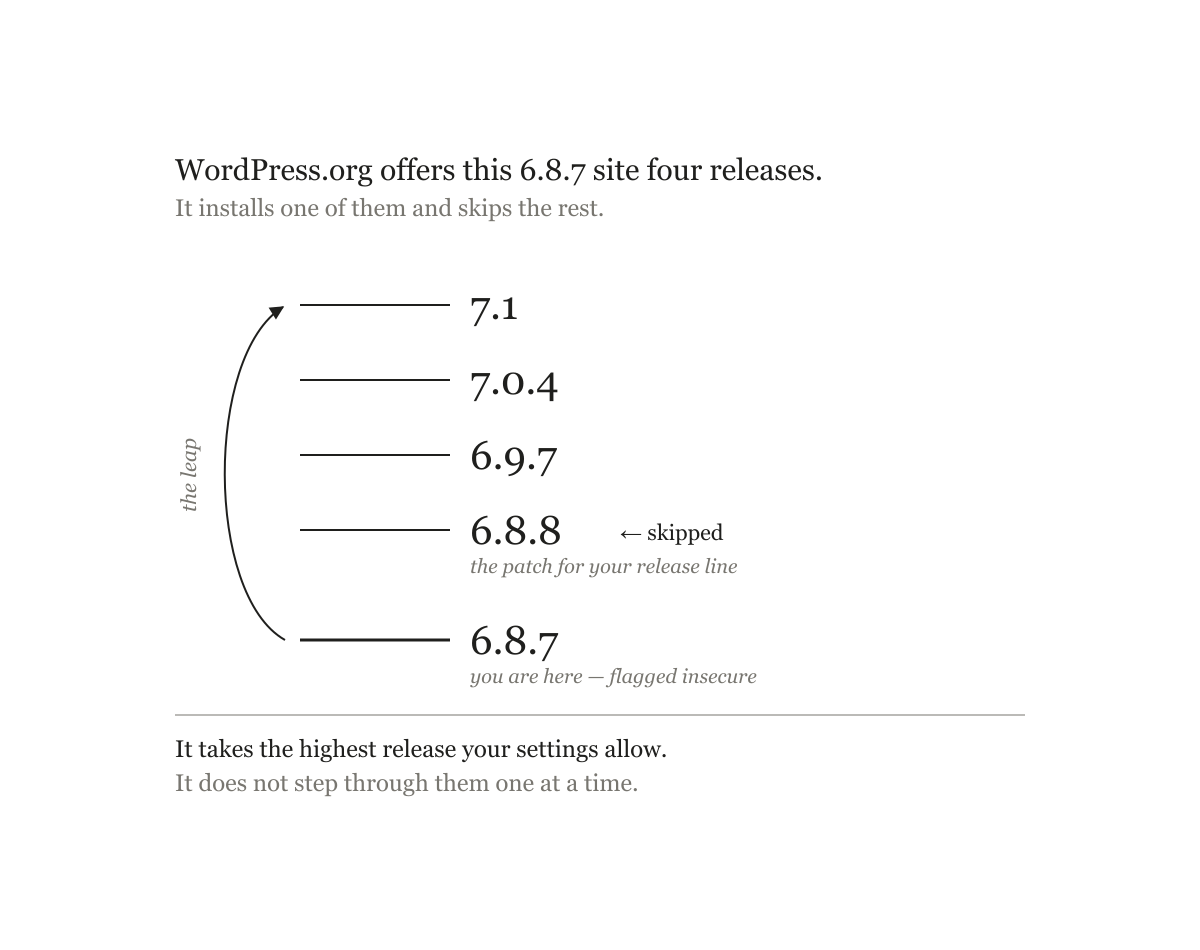
Ask WordPress.org what’s available for a 6.8.7 site, and you get five offers, not one:
response=upgrade current=7.1response=autoupdate current=7.1response=autoupdate current=7.0.4response=autoupdate current=6.9.7response=autoupdate current=6.8.8
Four of those are flagged for automatic installation, and the last one is your branch’s patched tip. It even ships with a delta package — wordpress-6.8.8-partial-7.zip — built specifically for sites coming from 6.8.7. The backport is real, it’s offered, and it’s ready to install itself.
So which one do you get? find_core_auto_update() walks the list and keeps the highest version your settings permit:
if ( ! $auto_update || version_compare( $update->current, $auto_update->current, '>' ) ) { $auto_update = $update;}
Highest, not nearest. That’s the whole story of the two divergent sites in the opening example about silent version drift.
I built a 6.8.7 site and ran the background updater against the live API, changing nothing but two options:
auto_update_core_minor | auto_update_core_major | Result |
|---|---|---|
| enabled | disabled | 6.8.7 to 6.8.8 — patched via same-branch backport |
| enabled | enabled | 6.8.7 to 7.1 — patched, backport skipped entirely |
| disabled | disabled | 6.8.7 to 6.8.7 — stays insecure |
Rows one and two both end up secure. They get there by completely different routes, and which route a site takes was decided by whether its installer wrote enabled or unset into auto_update_core_major — which, as my companion post explains, depends only on whether the site was built before or after the WordPress 5.6 release.
The third row — minor updates switched off — is the one to worry about.
Backports arrive as minor updates
A backport is, by construction, a same-branch release. 6.8.7 to 6.8.8 doesn’t change the branch, so when the updater evaluates it, it takes the minor path:
// 4: Minor in-branch updates (3.7.0 -> 3.7.1 -> 3.7.2 -> 3.7.4).if ( $current_branch === $new_branch ) { return apply_filters( 'allow_minor_auto_core_updates', $upgrade_minor );}
Your security backports and your routine maintenance releases are the same channel. There is no separate security track, no way to accept only the urgent ones, and nothing that overrides your configuration because a fix is important.
So every one of these silently opts you out of security patches:
| What you set | What you probably meant | What it actually does |
|---|---|---|
define( 'WP_AUTO_UPDATE_CORE', false ); | “Don’t jump me to a new major version” | Blocks security backports too, by default |
define( 'AUTOMATIC_UPDATER_DISABLED', true ); | “I handle updates myself” | Blocks everything by default, including backports |
define( 'DISALLOW_FILE_MODS', true ); | “Lock down the filesystem” | Blocks everything |
A .git, .svn, .hg, or .bzr directory at the site root | “This is version controlled” | Blocks everything, automatically — and from a parent directory too |
auto_update_core_minor set to disabled | “Fewer surprises” | Blocks security backports |
add_filter( 'allow_minor_auto_core_updates', '__return_false' ); | Same | Same |
The first row is the one I would expect to catch people most often. If what you want is “patch me, but never move me to a new feature release,” the constant has a value for exactly that, and it isn’t false:
define( 'WP_AUTO_UPDATE_CORE', 'minor' );
That keeps minor and security releases flowing and blocks major ones outright. Reaching for false when you meant 'minor' is a plausible way a site that looks carefully managed stops receiving security fixes.
Version control is the other one worth calling out, because nobody sets it deliberately. Core scans for a repository directory and refuses to auto-update if it finds one — sensibly, since it doesn’t want to fight your deploy process. But it means a site deployed from Git receives no automatic security patches at all, forever, with no admin notice beyond an email for core updates. If that’s your setup, backports are your responsibility and nothing will remind you about it.
The git file gotcha: If WordPress sees stray .git files — unintentional, unnoticed remainders of an earlier version-controlled state — it will refuse auto-updates.
The blocker nobody sets: HTTPS
There’s one more gotcha!
When WordPress asks the .org API what’s available over the version-check endpoint, it builds an http:// URL, then upgrades it:
$url = 'http://api.wordpress.org/core/version-check/1.7/?' . http_build_query( $query, '', '&' );$http_url = $url;$ssl = wp_http_supports( array( 'ssl' ) );if ( $ssl ) { $url = set_url_scheme( $url, 'https' );}
And a few lines later, if that HTTPS request fails, it retries against $http_url — the plain-HTTP original.
The two endpoints do not return the same thing. Over HTTPS, a 6.8.7 site gets the five offers above. Over plain HTTP, it gets exactly one:
response=upgrade current=7.1
No autoupdate entries at all! This makes complete sense as a security measure — WordPress.org will not tell a site over an unencrypted, tamperable channel which packages to silently install — but the consequence is stark. A site whose OpenSSL is broken, or whose egress firewall blocks HTTPS to api.wordpress.org, quietly receives an offer list containing nothing it will ever install automatically.
That site is not misconfigured in any way an admin would recognize. Its options are correct. Its constants are unset. Its filesystem is writable. No update-failure state is recorded, and the Updates screen shows a perfectly normal “please update” button. It simply never auto-updates again, including for security releases, and nothing anywhere in the system will tell you this. It is an uncommon failure — but where it happens, it is silent and total, and it persists until somebody thinks to look for it.
Two ways to end up there, and only one is obvious
The site can’t do SSL at all. wp_http_supports( array( 'ssl' ) ) returns false, so WordPress never attempts HTTPS — it goes straight to the plain-HTTP URL. Rare, and easy to detect.
The site can do SSL, but the request fails. An egress firewall, a proxy that breaks certificate validation, a stale CA bundle, a clock skewed enough to put certificates outside their validity window. WordPress tries HTTPS, gets a WP_Error, and falls back. This is the common trap — and the site remains, by every measure you would think to check — perfectly SSL-capable.
That distinction matters, because wp_http_supports() is a capability check, not a connectivity one. Follow it down, and it resolves to whether any HTTP transport could do SSL in principle — whether curl_version() reports CURL_VERSION_SSL, or whether the openssl extension is loaded. Nothing there touches the network. So the check you would naturally reach for returns true on a site in the second situation: it catches the rare failure and misses the common one.
Stop asking whether the site could reach WordPress.org securely, and look at what actually came back. If offers exist but none is flagged autoupdate, the site is on the HTTP endpoint:
wp eval 'delete_site_transient( "update_core" );wp_version_check();$t = get_site_transient( "update_core" );$all = count( (array) $t->updates );$auto = count( array_filter( (array) $t->updates, fn( $u ) => "autoupdate" === $u->response ) );printf( "%d offers, %d flagged autoupdate\n", $all, $auto );'
On a healthy site behind on its branch, the second number is greater than zero. “Offers exist, but zero are flagged for automatic installation” is the signature.
The fallback isn’t quite as silent as it looks, either. It fires wp_trigger_error() first — at E_USER_WARNING when WP_DEBUG is on, E_USER_NOTICE otherwise — which on a production site means it lands in the PHP error log (if you keep one) and nowhere else. Find it with a grep:
grep -r "could not establish a secure connection to WordPress.org" /path/to/logs/
Know where the floor is
Backports don’t go back indefinitely. Of the 54 release branches in WordPress history, 25 currently have a secure tip. The other 29 — everything from 1.0 through 4.6 — have no patched release at all. Every version on those branches is marked insecure.
That includes 3.7, the branch that introduced automatic updates in the first place, and which WordPress backported to for many years. C’est la vie.
The practical consequence: if you are running something older than 4.7, there is no configuration that will help you. The patch you’d be waiting for doesn’t exist and isn’t coming. The only fix is to move to a branch that’s still being maintained, and you really, really need to do that ASAP.
A caveat on that number: 4.7 is what the data shows today. I’m reading it off the live API, not off a published support commitment, and the floor has moved before. Treat it as the current state rather than a promise — and re-check it rather than trusting this blog in a year, unless I update it!
A Handy Checklist
- Find out whether you’re actually patched. Look up your exact version in stable-check.
insecuremeans update today.outdatedmeans it is not currently flagged — which is not the same as supported. The Dashboard will tell you an update exists; it will not tell you this. - Confirm the site can reach the API over HTTPS. If it can’t, everything else on this list is irrelevant — it will never auto-update again.
- If WordPress’s own updater is responsible for your patches, use
'minor'rather thanfalse. If you want patches without feature releases,define( 'WP_AUTO_UPDATE_CORE', 'minor' );is the setting.falseturns off the thing you wanted to keep. - Decide, deliberately, whether you want backports or leaps. Declining major updates gets you the nearest same-branch patch. Accepting them gets you the newest release instead. Both are secure; only one is predictable. Right now that choice is probably being made by your install date.
- Audit for accidental blocks. A stray
.gitdirectory, an inheritedDISALLOW_FILE_MODS, or a host’sautomatic_updater_disabledfilter will stop backports silently. - If you’re below 4.7, none of the above applies. There is no patched release on your branch. It’s very obsolete! Update ASAP.
If you don’t use WP-CLI
The single most useful check in this post needs nothing but a browser. Open the stable-check list, press Ctrl-F or Cmd-F, and search for your exact version number. It will say latest, outdated, or insecure. That is the whole diagnosis.
Your exact version is at the foot of any Dashboard screen, bottom right, and on Dashboard › Updates. Note that you need all three numbers: being on 6.8 tells you nothing, because 6.8 and 6.8.8 are entirely different answers.
Tools › Site Health › Status will flag the accidental blockers — version control, unwritable files, FTP credentials — which covers several of the ways sites stop patching themselves without anyone deciding to.
The HTTPS failure is the exception, and Site Health is less silent here than I first thought — I had this wrong at first: its “Communication with WordPress.org” test makes a real HTTPS request to api.wordpress.org and reports critical when it fails, so most broken-TLS and blocked-egress cases surface there. The gap is narrower than no coverage — that test issues a GET to the API root, while the update check POSTs to /core/version-check/1.7/, so a failure specific to the method, path, proxy, or cache can pass Site Health and still break updates. If everything else looks right and the site still is not updating, you need WP-CLI.
Ask your technical support provider or a WordPress developer to check from the command line. Or, you can learn how to do this yourself! It’s not hard — especially if you use Automattic’s WordPress Studio app and/or an LLM like Claude, who will be happy to work with WP-CLI and show you how. There are plenty of helpful tutorial videos out there too.
Installing a backport without the command line
The WordPress dashboard’s core updates screen will not offer you a same-version line patch unless that patch also happens to be the newest release, but there is a tool that closes the gap from the admin: Core Rollback, by Andy Fragen. It is intended for rolling back to older versions of WordPress core, but it will also roll you forward to any version WordPress.org is currently offering, and your same-line patch is one of those.
Core Rollback works by keeping the offers core throws away. Every version it finds in the update API gets relabelled and fed back through WordPress’s own updater, so the install itself is core’s, not the plugin’s. Go to Tools › Rollback Core, choose your version, and click Rollback.
Two things about it will make you think it has failed, but fortunately that’s not accurate.
The rollback button says “Re-install version 6.9.7” when you are plainly upgrading to it. That happens because the rollback plugin marks each offer latest to get it past the filtering that hid it, and core reads latest as “you already have this,” so it offers you a re-install. Click it, and it will install the version you want. It is the only button that can work here: core’s upgrader refuses anything marked latest as already current, and the re-install route is what relabels it on the way through.
You have about fifteen seconds. The “doctored” offer (ha!) is stored in a transient that expires that quickly. If the page takes a moment to load, or you stop to read for a while, the offer is gone. The Updates screen looks perfectly ordinary — as though nothing happened. Nothing broke. Go back to Tools › Rollback Core and do it again. Just click the reinstall button promptly this time.
Take a backup first, as with any core update. Once you’ve landed on the correct version, don’t forget it could have arrived by itself if you had properly configured your core updates. Go fix that next.
There’s a new plugin for this…
Another plugin-based, easy-button solution for all this is Keel, a plugin I authored. Keel offers WordPress site admins full visibility, control, and understanding of essential core configuration settings:
- See. Surface 39 hidden or under-exposed defaults in WordPress core.
- Control. Set the most generally useful values as defaults you can see and choose to change. Set and forget them, but they’ll be there when you need them.
- Understand. Get detailed explanations and dynamic feedback about your environmental settings via WordPress core’s Site Health tool and handy dropdown help tabs.
For everything from truly disabled comments to an explicit core auto-update policy, Keel is a great way to confidently control core WordPress features from a single extra settings page.
Keel will tell you where you stand with auto-updates and provide a facility for updating to any newer version, from a minor patch to a major version jump.
Try a demo instantly in your browser at WordPress Playground.
▶ Try the latest release — byte-identical to what you would download, and it follows each new stable release.
▶ Try the rolling build — the latest pre-release, for previewing changes before they are cut.
How this article was researched & written
I wrote and edited this post through all its revisions. It began long ago with questions I had around my assumptions regarding security backports in WordPress. Claude Opus 5 worked with me on the middle drafts and follow-up research, verification, and copy editing.
Every claim here about how WordPress behaves was checked against the current core source. Where a claim could be tested, it was. The update decisions described above were reproduced on real WordPress installs, driven against the live WordPress.org API, with the relevant options changed one at a time to see what actually happened. The version tables and API responses are recorded output, not illustrations. This was part of the writing, research, and revision process.
Live testing always earns the extra effort it takes. LLMs make errors from reasoning about code instead of running it. Human and machine peer review is always worthwhile too. The finished draft went through the AI-assisted editorial review process I use for security and technical documentation — it applies an authority hierarchy that puts source code above secondary sources, mechanically validates commands and code blocks, runs a terminology and style pass, and audits consistency across both posts in this series. Findings were raised for decision rather than applied automatically; some were accepted, and one was rejected outright.
The judgement calls, the framing, and the errors that remain are mine.
Last updated:
Leave a Reply